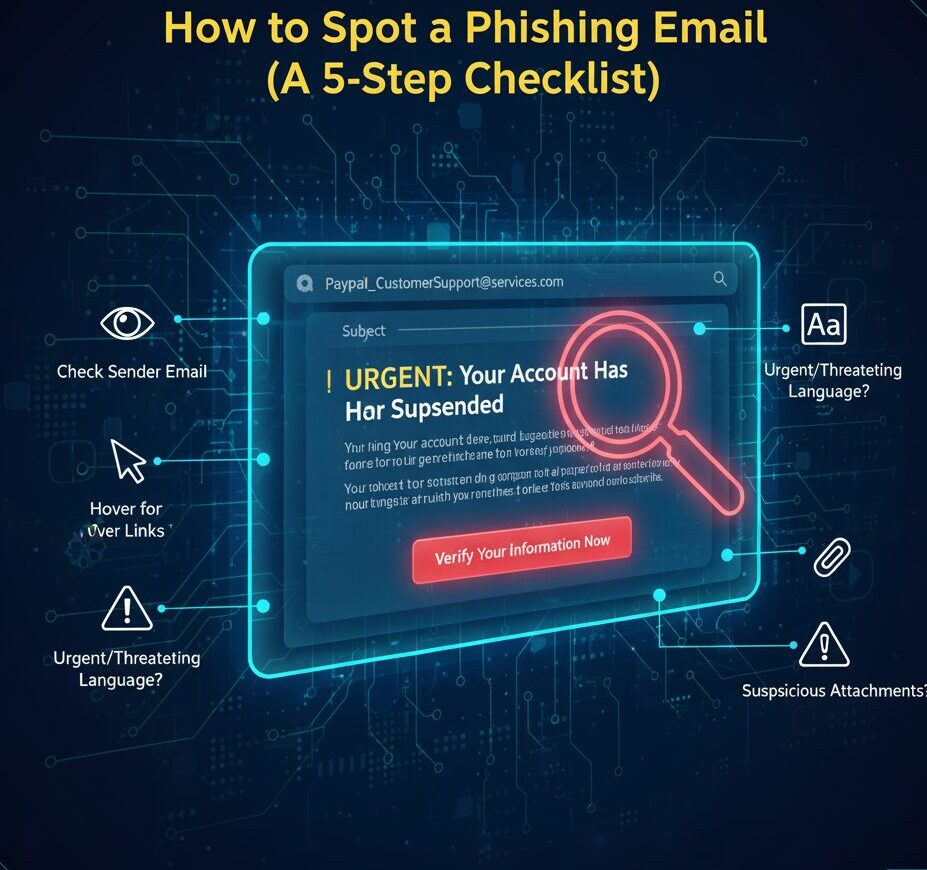
Spot a Phishing Email

How to Spot a Phishing Email – 5-Step Checklist

Learning how to Spot a Phishing Email is one of the most critical cybersecurity skills you can acquire in the digital age. Phishing attacks remain the leading cause of data breaches, targeting individuals and organizations alike with deceptive messages designed to steal credentials, financial information, or deploy malware. With a simple, systematic approach, you can significantly reduce your risk. This comprehensive 5-step checklist will teach you exactly how to Spot a Phishing Email quickly and effectively, transforming you from a potential victim into a vigilant defender.


Why Knowing How to Spot a Phishing Email is Crucial

Phishing emails rely on social engineering, manipulating human trust or urgency to bypass technical defenses. Attackers constantly refine their tactics, making it harder to discern legitimate communications from malicious ones. However, by applying this checklist, you’ll be well-equipped to Spot a Phishing Email before it causes damage.
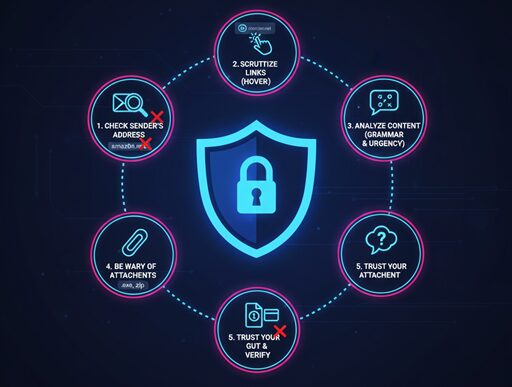

How to Spot a Phishing Email - 5-Step Checklist
Spot a Phishing Email

Your 5-Step Checklist

Step 1: Check the Sender’s Email Address and Name

This is often the quickest giveaway for how to Spot a Phishing Email. Don’t just look at the displayed name; examine the actual email address.

  • Look for Mismatches: Is the displayed name “Amazon Support” but the email address is support@amaz0n.net (with a zero instead of an ‘o’) or amazon@randomfreemail.com? Legitimate companies use their official domain.
  • Spoofed Addresses: Be wary of emails from a familiar name where the address looks completely out of place (e.g., your CEO’s name coming from a Gmail address).
  • Generic Senders: If an email purports to be from a large company but uses a generic sender like “Customer Service” or “Account Team” with no specific company name, it’s often a sign of a phishing attempt.

Step 2: Scrutinize Links Before Clicking (Hover, Don’t Click!)

Malicious links are the primary delivery mechanism for phishing attacks. This step is vital for how to Spot a Phishing Email.

  • Hover Your Mouse: On a desktop, hover your mouse cursor over any link without clicking it. A small pop-up or status bar will reveal the true destination URL.
  • Long-Press on Mobile: On a smartphone or tablet, long-press the link (don’t release your finger) to preview the URL.
  • Look for Discrepancies: Does the displayed text say “https://www.google.com/search?q=login.microsoft.com” but the actual URL points to evil-site.ru/login? This is a classic phishing tactic. Always ensure the domain name in the link matches the legitimate company.
  • URL Shorteners: Be extra cautious with shortened URLs (like bit.ly links) in unexpected emails, as they obscure the true destination.

Step 3: Analyze the Email’s Content for Red Flags

The body of the email often contains tell-tale signs for how to Spot a Phishing Email.

  • Grammar and Spelling Errors: Legitimate communications from reputable organizations are usually professionally written. Numerous typos, poor grammar, or awkward phrasing are major red flags.
  • Sense of Urgency or Threat: Phishing emails often create panic. Phrases like “Your account will be suspended immediately,” “Urgent action required,” or “Verify your details now” are designed to make you act without thinking.
  • Requests for Sensitive Information: Reputable companies will never ask you to verify passwords, social security numbers, or credit card details via email. If an email asks for this, it’s almost certainly a phishing attempt.
  • Generic Greetings: If an email from your “bank” or “employer” addresses you as “Dear Customer” or “Valued Member” instead of your actual name, it’s a strong indicator of a phishing attempt.

Step 4: Evaluate Unexpected Attachments

Attachments are a common way for malware to be delivered. Be very cautious.

  • Unsolicited Files: If you receive an unexpected attachment, even from someone you know, be suspicious. Their account might be compromised.
  • Unusual File Types: Be wary of unusual file extensions like .zip, .exe, .scr, .js, or .vbs in attachments, especially if you didn’t specifically request them.
  • Context is Key: If the attachment doesn’t make sense in the context of your relationship with the sender, do not open it.

Step 5: Consider the Context and Be Skeptical

Sometimes, all the technical indicators might look “clean,” but something just feels off. Trust your gut. This is the final step in how to Spot a Phishing Email.

  • Is it Logical? Did you actually enter a lottery you supposedly won? Is your bank asking you to update details you just updated last week?
  • Too Good to Be True: Offers that seem exceptionally generous (e.g., massive discounts, free money) are almost always scams.
  • Verify Independently: If you’re unsure, do not use any contact information or links from the suspicious email. Instead, independently navigate to the company’s official website (by typing their URL directly into your browser) or call their official customer service number (from their official website or a previous bill) to verify the request.

By systematically applying this 5-step checklist, you will significantly improve your ability to Spot a Phishing Email and protect yourself from one of the internet’s most persistent and dangerous threats. Stay vigilant, stay safe!

Don’t be a victim. Scammers are getting smarter, but their tricks are easy to spot. The Secure Patrol gives you a simple 5-step checklist to identify and delete any phishing email in seconds.

It’s 9 AM on a Tuesday. An email lands in your inbox. Subject: Urgent: Your Amazon Account Has Been Locked.

Your heart jumps. You’re expecting a package. You click the link to “Verify Your Account,” and just like that, the trap snaps shut.

This is phishing—digital bait used by con artists to steal your passwords, credit card numbers, and personal identity. These scams are no longer sloppy, misspelled jokes. They are sophisticated, targeted, and dangerously effective.

As TheSecurePatrol.com, our job is to put you on watch. We see these threats every day. The good news? Once you know the warning signs, these fakes become glaringly obvious.

Here is your official 5-Step Patrol Checklist to spot a phishing email and protect your inbox.


Step 1: Interrogate the Sender (Don’t Trust the Name)

This is the number one red flag. Scammers are experts at making an email look official.

  • The Trap: The display name says “Microsoft” or “Netflix Support.”
  • The Check: Look at the actual email address, not just the name. Hover your mouse over the sender’s name or tap it on mobile to reveal the full address.

A legitimate email from Microsoft will come from an address ending in @microsoft.com. A scammer’s email will be a jumbled mess designed to look similar.

  • Real: support@paypal.com
  • Fake: paypal.support@secure-login-1a.net or micros0ft-security@outlook.com

If the email address looks weird, it is weird. Delete it.

Step 2: Look for the Emotional “Hook” (Urgency & Fear)

Scammers don’t want you to think. They want you to panic. They create a false sense of urgency to rush you into making a mistake.

Look for these classic emotional triggers:

  • Fear: “Your account has been compromised.”
  • Urgency: “Action required within 24 hours or your account will be deleted.”
  • Greed: “You’ve won a $1,000 gift card!”
  • Helpfulness: “Here is the invoice you requested.” (Even if you never requested one).

Real companies don’t operate this way. Your bank will never email you threatening to close your account over an “urgent” link. They will use secure, on-site messages. If it feels like a threat, it’s a test. Don’t fail it.

Step 3: The Hover-Before-You-Click Test (Expose the Real Link)

This is the most important technical skill you can learn. Just like the sender’s address, the links in the email are designed to deceive.

That blue “Sign In Now” button might look like it goes to your bank, but it almost certainly doesn’t.

  • On a computer: Hover your mouse cursor over the button or link (DO NOT CLICK). In the bottom corner of your browser, a small box will appear showing you the actual web address it will send you to.
  • On a phone: Press and hold the link or button. A menu will pop up showing you the full link preview.

If the link looks suspicious (like bit.ly/3xYqzb or amazon-login.secure-site.xyz), it’s a scam.

Step 4: Spot the “Off” Details (Bad Grammar & Weird Logos)

This is the classic sign, but it’s still surprisingly common. Read the email carefully.

Major corporations like Amazon, Apple, or Google have entire teams of editors. Their emails are flawless. Scammers’ emails, which are often translated or written quickly, are frequently full of mistakes.

Look for:

  • Awkward grammar or phrasing (“Your account is in limitation.”)
  • Spelling mistakes.
  • Logos that look low-quality, pixelated, or just plain wrong.
  • A generic greeting like “Dear Valued Customer” instead of your actual name.

These details are the digital “tells” of a con artist.

Step 5: Treat Attachments Like Ticking Bombs

Let’s be crystal clear: Never, ever open an unexpected attachment.

This is the primary way that ransomware (software that locks up your computer and demands money) is spread. Scammers will disguise these files as something harmless:

  • Invoice.pdf
  • Shipping_Details.zip
  • Updated_Policy.docx

Unless you were 100% expecting that specific file from that specific person, do not open it. No legitimate company will send you critical updates in a random .zip file.


“Patrol Report: What If I Already Clicked?”

Okay, you clicked. Don’t panic, but act fast.

  • Disconnect: Immediately disconnect your computer from the internet (unplug the ethernet cable or turn off Wi-Fi). This stops the malware from spreading or sending your data.
  • Run a Scan: If you have an antivirus program, run a full system scan. (If you don’t, see our report on the Best Antivirus Software).
  • Change Passwords: If you entered your login information on a fake site, go to the real site immediately (by typing the address in yourself) and change your password. Change it on any other site that uses the same password.
  • Freeze Your Credit: If you entered credit card information, call your bank immediately and report the fraud.

Trust Is Earned

Your inbox is your digital front door. These 5 steps are your locks, your peephole, and your alarm system. The golden rule of The Secure Patrol is simple: Be skeptical. Trust is earned, and 99% of unsolicited emails haven’t earned it.

Similar Posts

  • Guide to Protecting Your Online Identity – Staying Safe in the Digital Age 2026

    The guide to protecting your online identity is mandatory. In today’s hyper-connected world, your online identity is often more valuable—and vulnerable—than your physical belongings. It is the summation of your data, passwords, interactions, and reputation across every digital platform. Therefore, mastering the Guide to Protecting Your Online Identity is mandatory, not optional, for every internet user. Neglecting this crucial aspect leaves you exposed to everything from financial fraud to identity theft. This comprehensive Guide to Protecting Your Online Identity will walk you through the essential steps to secure your digital presence and ensure you are truly safe in the digital age.

  • The True Cost of “Checking the Box” on Cybersecurity Compliance

    While Cybersecurity Compliance is a regulatory necessity, viewing it as the ultimate objective is a strategic failure. Relegating compliance to a purely administrative function creates a misalignment between perceived safety and actual risk posture. This “compliance-first” mentality fosters a false sense of security, leaving critical vulnerabilities within the defense architecture unaddressed. Furthermore, it results in significant budgetary inefficiency. For the modern CISO, distinguishing between regulatory adherence and genuine security resilience is paramount to avoiding the hidden costs of superficial compliance.

  • Using Docker for Penetration Testing Experts

    Using Docker for Penetration Testing Experts, Docker’s, DevOps except it’s very attractive for you cyber security in the field of cyber security experts, penetration testers and black-white-blue-green-red… hat hackerwe see that they are preferred by ‘people and we recommend that they use them to do their job.

  • What is a Converged Security Professional and Why Is It the Next Big Career?

    In the modern enterprise, risk is no longer neatly divided between the physical and digital realms. A sophisticated attack today often begins with a cyber vulnerability and ends with a physical action, or vice-versa. This blurring of lines has created a massive demand for a new type of expert: the converged security professional. This role is rapidly becoming the next big career opportunity, focusing on integrating the often-siloed disciplines of physical security and cybersecurity into one cohesive risk management strategy. A true converged security approach recognizes that securing the server room is just as vital as securing the server itself.