DITTO DX Forensic3 1

DITTO DX Forensic: The Ultimate Game-Changer in Digital Data Analysis

Unleashing the Power of DITTO DX Forensic in the Digital Age

In our increasingly digital world, the complexity of digital data recovery and forensic analysis has skyrocketed. With a plethora of digital devices and an explosion of data, experts need reliable, efficient tools to collect, analyze, and prepare data for forensic processes. Enter the DITTO DX Forensic device, a revolutionary solution designed to meet these challenges head-on.

What is DITTO DX Forensic?

The DITTO DX Forensic is a cutting-edge, portable device that simplifies digital data recovery and analysis. It’s the go-to tool for data recovery experts, cybersecurity professionals, and forensic analysts, enabling them to safely and effectively collect and analyze digital evidence. By accelerating digital data analysis while preserving data integrity, the DITTO DX Forensic ensures the procurement of admissible evidence for forensic processes.

Unboxing the DITTO DX Forensic

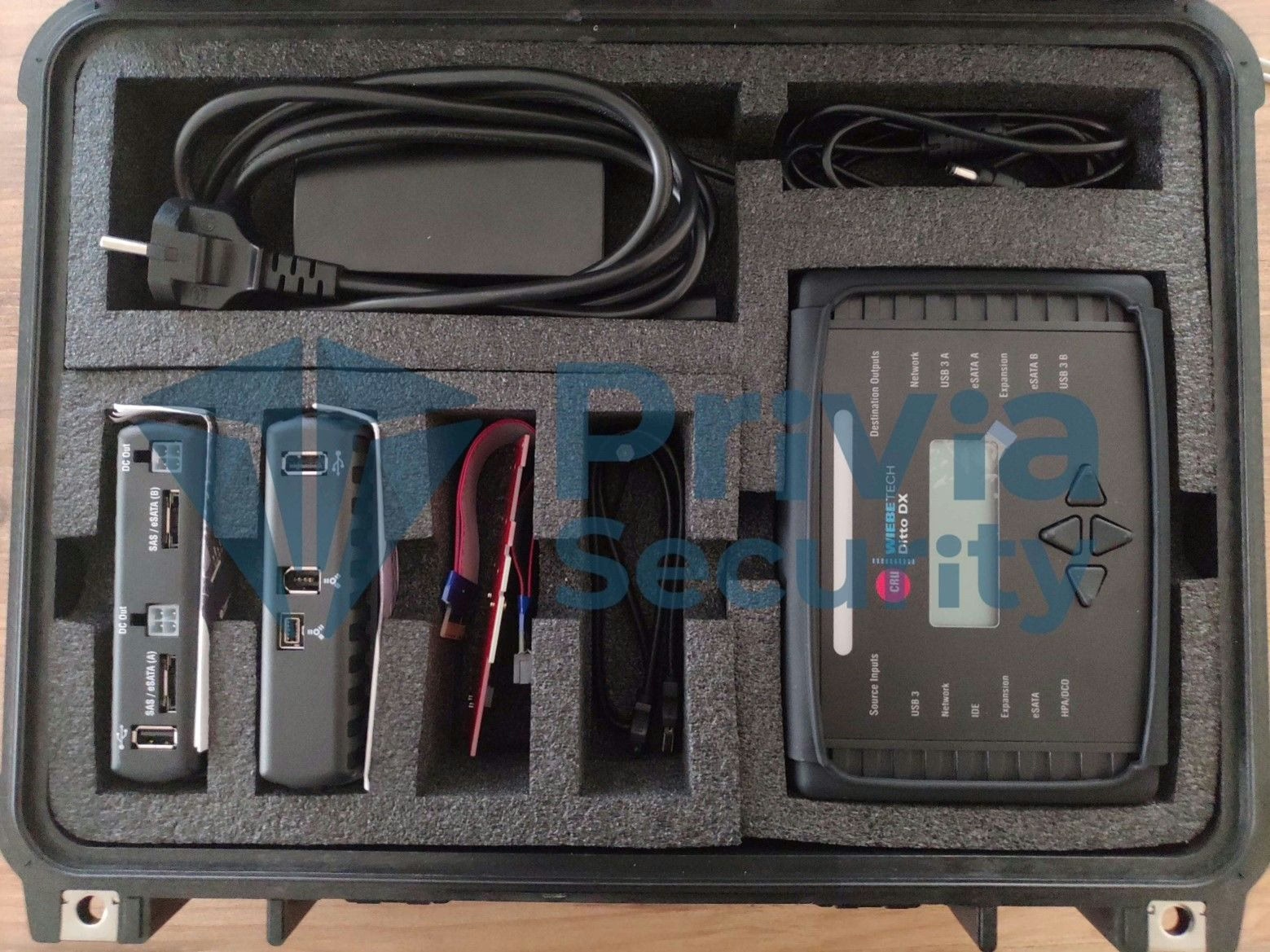
When you invest in the DITTO DX Forensic, you receive a comprehensive package that includes:

  • Ditto DX Forensic FieldStation Device
  • SAS to eSATA + MiniFit Power Cable Converter
  • IDE Cable
  • 12V Power Supply
  • Power Cable
  • Legacy Power to MiniFit Power Converter
  • Ethernet Cable (RJ45)
  • Velcro Cable Tie
  • eSATA Cable
  • SD Card
  • Ditto DX External Fan

Key Features and Benefits of DITTO DX Forensic

  • Portability: The DITTO DX Forensic is designed for quick interventions in the field or at the scene of an incident.
  • Multi-Media Support: This versatile device collects data from various digital storage media, including computers, mobile devices, memory cards, USB drives, and more.
  • Data Integrity: The DITTO DX Forensic maintains data integrity during collection and analysis, preventing alterations to the original data.
  • User-Friendly Interface: The device’s intuitive interface makes data recovery and analysis processes more efficient.
  • Wide Data Storage Support: The DITTO DX Forensic offers extensive data storage support for collecting and analyzing data from various digital devices.
  • Powerful Hardware: The device’s robust hardware enables high-speed data copying and imaging, contributing to the efficient completion of digital data recovery processes.
  • Data Deletion Detection: The DITTO DX Forensic can detect data deletion operations on digital devices, playing a significant role in determining whether evidence has been tampered with or destroyed.
  • File System Analysis: The device helps structure data and understand file relationships by analyzing different file systems.
  • Text-Based Searches: The DITTO DX Forensic facilitates finding specific keywords or phrases by performing text-based searches within large volumes of data.

Understanding Status Information by LightBar Color

  • Blue (Solid): Idle
  • Magenta (Solid): An operation is in progress
  • Green (Solid): An operation has been successfully completed
  • Red (Solid): An error has been detected or the ongoing action has been canceled by the user
  • Yellow (Solid/Blinking): The processor is approaching the maximum recommended temperature. It is advised to use the Ditto DX external fan. The ongoing action has been suspended by Ditto DX due to temperature issues and will resume once the temperature returns to the recommended level.

Setting Up the DITTO DX Forensic

The control interface of the Ditto DX Forensic FieldStation machine includes a power button, a power input for the 12V power supply, two SD card slots for keyboard or WiFi adapter use, an RJ45 Ethernet port for accessing the Ditto DX scanner interface, and a stealth button to turn off all lights and enable night vision mode.

Accessing the Browser Interface

The Ditto DX can be accessed from the front panel or through the browser interface. For network access, follow these steps:

  1. Connect an Ethernet cable to the RJ45 port on the Ditto DX Control Interface.
  2. Connect the other end of the cable to a router or hub.
  3. Connect the power cable.
  4. Turn on the Ditto DX using the power button at the back (0 = off, 1 = on).

If you have previously configured the Ditto DX and know its IP address, you’re ready to go. If not, you’ll need to configure it using one of the available methods.

Navigating the Main Screen

The main screen is the first screen that appears upon logging in and is where most operations are performed. The “Action” panel is where all operations, such as initiating or canceling cloning, are carried out. You can add a note to the log by clicking the “Comment” button. The “Configure” button allows you to change the default settings for each operation. The same operation can also be performed from the “CONFIGURE” section on the top panel.

Cloning a Source Disk

Ditto DX can create an exact copy of the source disk on one or two disks. Additionally, Ditto DX can hash the source disk using MD5, SHA-1, SHA-256, or MD5 & SHA-256 algorithms during the cloning process. To clone, follow these steps:

  1. In the browser interface, select “Clone Source Disk” from the dropdown menu next to Action The Perform.
  2. Select the source and target disks.
  3. Ensure the target disk has more capacity than the source disk.
  4. Find the results of the cloning process in the “System Log” section at the bottom of the main screen or in the “LOGS” section on the top panel.

For more information, you can refer to the official Logicube website.

Similar Posts