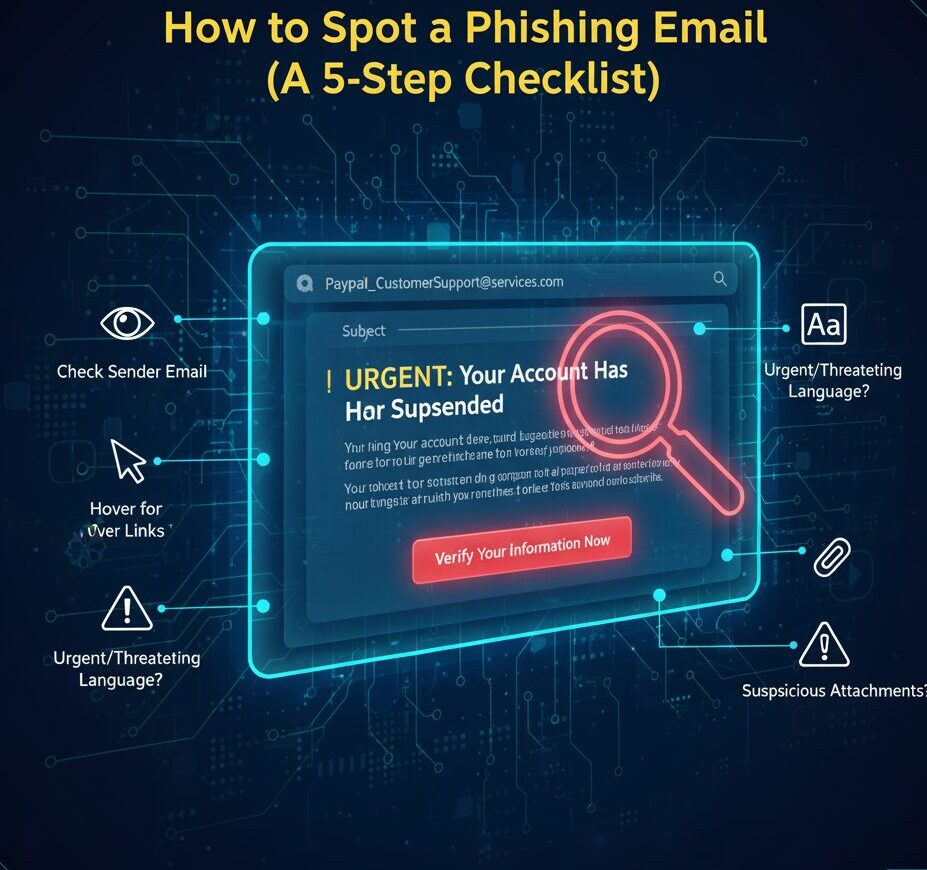
How to Spot a Phishing Email – 5-Step Checklist
Learning how to Spot a Phishing Email is one of the most critical cybersecurity skills you can acquire in the digital age. Phishing attacks remain the leading cause of data breaches, targeting individuals and organizations alike with deceptive messages designed to steal credentials, financial information, or deploy malware. With a simple, systematic approach, you can significantly reduce your risk. This comprehensive 5-step checklist will teach you exactly how to Spot a Phishing Email quickly and effectively, transforming you from a potential victim into a vigilant defender.
Why Knowing How to Spot a Phishing Email is Crucial
Phishing emails rely on social engineering, manipulating human trust or urgency to bypass technical defenses. Attackers constantly refine their tactics, making it harder to discern legitimate communications from malicious ones. However, by applying this checklist, you’ll be well-equipped to Spot a Phishing Email before it causes damage.
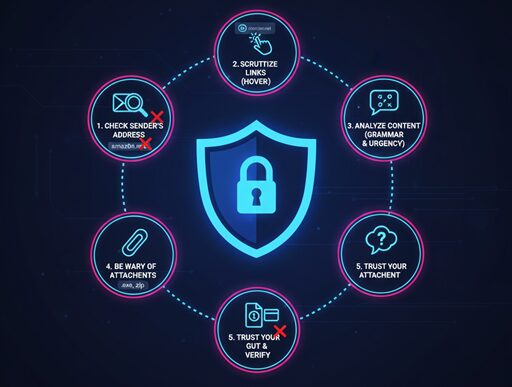
Your 5-Step Checklist
Step 1: Check the Sender’s Email Address and Name
This is often the quickest giveaway for how to Spot a Phishing Email. Don’t just look at the displayed name; examine the actual email address.
Step 2: Scrutinize Links Before Clicking (Hover, Don’t Click!)
Malicious links are the primary delivery mechanism for phishing attacks. This step is vital for how to Spot a Phishing Email.
Step 3: Analyze the Email’s Content for Red Flags
The body of the email often contains tell-tale signs for how to Spot a Phishing Email.
Step 4: Evaluate Unexpected Attachments
Attachments are a common way for malware to be delivered. Be very cautious.
Step 5: Consider the Context and Be Skeptical
Sometimes, all the technical indicators might look “clean,” but something just feels off. Trust your gut. This is the final step in how to Spot a Phishing Email.
By systematically applying this 5-step checklist, you will significantly improve your ability to Spot a Phishing Email and protect yourself from one of the internet’s most persistent and dangerous threats. Stay vigilant, stay safe!
Don’t be a victim. Scammers are getting smarter, but their tricks are easy to spot. The Secure Patrol gives you a simple 5-step checklist to identify and delete any phishing email in seconds.
It’s 9 AM on a Tuesday. An email lands in your inbox. Subject: Urgent: Your Amazon Account Has Been Locked.
Your heart jumps. You’re expecting a package. You click the link to “Verify Your Account,” and just like that, the trap snaps shut.
This is phishing—digital bait used by con artists to steal your passwords, credit card numbers, and personal identity. These scams are no longer sloppy, misspelled jokes. They are sophisticated, targeted, and dangerously effective.
As TheSecurePatrol.com, our job is to put you on watch. We see these threats every day. The good news? Once you know the warning signs, these fakes become glaringly obvious.
Here is your official 5-Step Patrol Checklist to spot a phishing email and protect your inbox.
Step 1: Interrogate the Sender (Don’t Trust the Name)
This is the number one red flag. Scammers are experts at making an email look official.
A legitimate email from Microsoft will come from an address ending in @microsoft.com. A scammer’s email will be a jumbled mess designed to look similar.
- Real:
support@paypal.com - Fake:
paypal.support@secure-login-1a.netormicros0ft-security@outlook.com
If the email address looks weird, it is weird. Delete it.
Step 2: Look for the Emotional “Hook” (Urgency & Fear)
Scammers don’t want you to think. They want you to panic. They create a false sense of urgency to rush you into making a mistake.
Look for these classic emotional triggers:
Real companies don’t operate this way. Your bank will never email you threatening to close your account over an “urgent” link. They will use secure, on-site messages. If it feels like a threat, it’s a test. Don’t fail it.
Step 3: The Hover-Before-You-Click Test (Expose the Real Link)
This is the most important technical skill you can learn. Just like the sender’s address, the links in the email are designed to deceive.
That blue “Sign In Now” button might look like it goes to your bank, but it almost certainly doesn’t.
If the link looks suspicious (like bit.ly/3xYqzb or amazon-login.secure-site.xyz), it’s a scam.
Step 4: Spot the “Off” Details (Bad Grammar & Weird Logos)
This is the classic sign, but it’s still surprisingly common. Read the email carefully.
Major corporations like Amazon, Apple, or Google have entire teams of editors. Their emails are flawless. Scammers’ emails, which are often translated or written quickly, are frequently full of mistakes.
Look for:
These details are the digital “tells” of a con artist.
Step 5: Treat Attachments Like Ticking Bombs
Let’s be crystal clear: Never, ever open an unexpected attachment.
This is the primary way that ransomware (software that locks up your computer and demands money) is spread. Scammers will disguise these files as something harmless:
Invoice.pdfShipping_Details.zipUpdated_Policy.docx
Unless you were 100% expecting that specific file from that specific person, do not open it. No legitimate company will send you critical updates in a random .zip file.
“Patrol Report: What If I Already Clicked?”
Okay, you clicked. Don’t panic, but act fast.
Trust Is Earned
Your inbox is your digital front door. These 5 steps are your locks, your peephole, and your alarm system. The golden rule of The Secure Patrol is simple: Be skeptical. Trust is earned, and 99% of unsolicited emails haven’t earned it.