Unleash the Power of Wireshark: Master Network Traffic Analysis Like a Pro
Wireshark, formerly known as Ethereal, is a robust network packet and protocol analyzer. It’s your go-to tool for capturing and interactively browsing traffic on a computer network. Wireshark stands tall as one of the most effective and efficient network analysis tools in the market today.
Kickstarting Your Journey with Wireshark
In this guide, we’ll dive into using Wireshark to analyze network traffic. The installation process is a breeze, quickly setting up a virtual network interface on your computer. This interface captures all traffic, allowing Wireshark to maintain a record of the data flow.
Why Wireshark Stands Out
Running Wireshark
First, launch Wireshark from the Start menu in administrator mode. This ensures Wireshark has the necessary permissions to analyze all traffic. Without these permissions, Wireshark might encounter errors and fail to analyze the traffic.
Upon launching, Wireshark checks for updates and prompts you to update if a new version is available. After this step, the Wireshark application interface will appear. Within this interface, select the network interface you want to analyze, and Wireshark will start displaying the packets.
Filtering Traffic
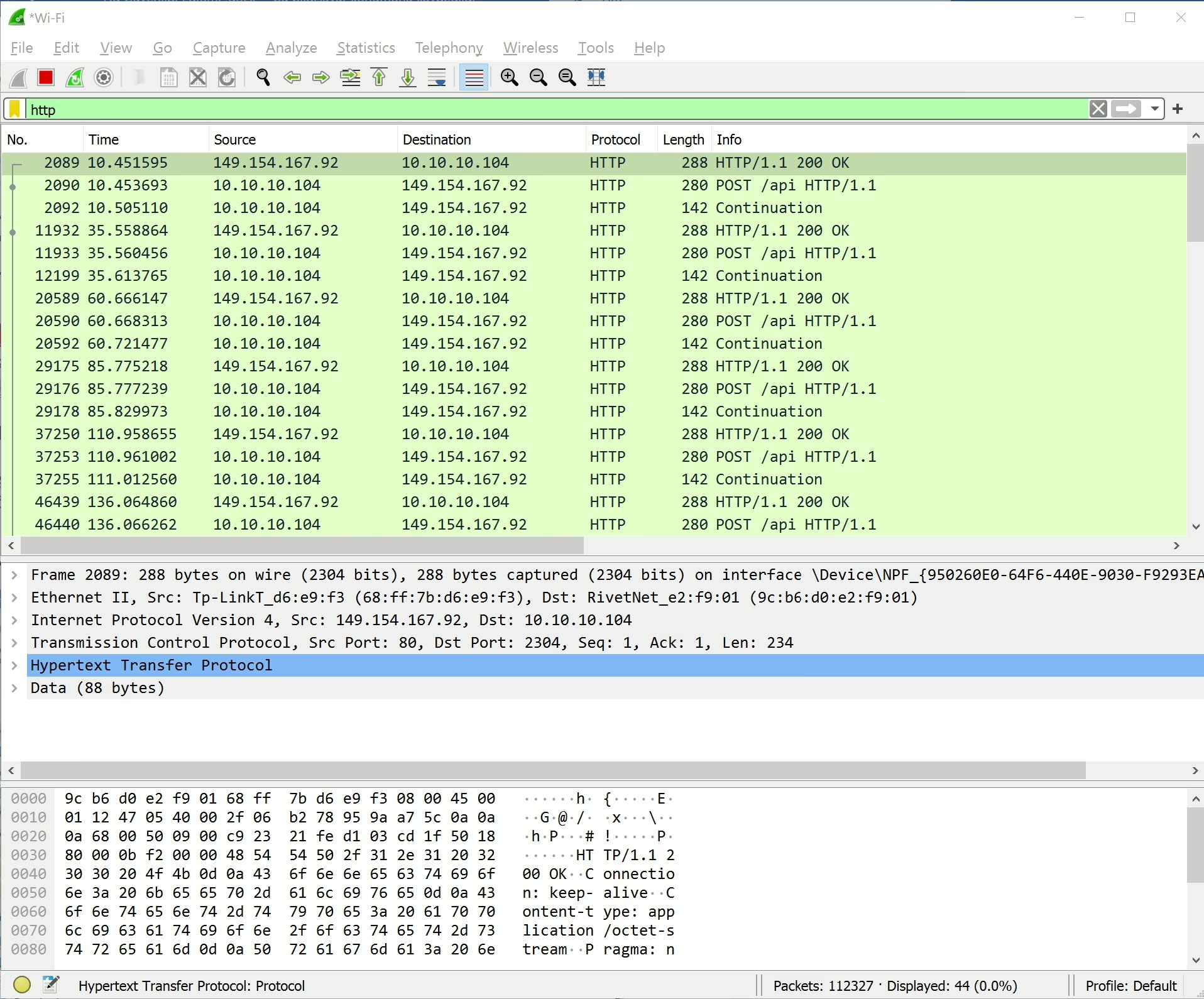
You can filter the traffic by entering the type of traffic you want to filter in the filter menu. For example, typing “http” in the filter box will display only HTTP traffic. The columns provide information such as packet number, time, source, destination, protocol type, length, and a brief description of the packet.
Analyzing HTTP Traffic
To analyze HTTP traffic, type “http” in the filter box. This will display only HTTP traffic on the interface. You can also filter for HTTP2 or HTTP3 traffic using the same method.
Filtering Traffic by IP Address
You can filter traffic based on the source IP address. For example, to filter traffic from a specific IP address, use the command ip.src==10.10.10.1 in the filter box. This will display all traffic from the source IP address 10.10.10.1.
Monitoring Modem Traffic
To monitor traffic from your modem, use the command ip.src==10.10.10.1 in the filter box. This will display all traffic from the source IP address 10.10.10.1. To view only HTTP traffic from this IP address, use the command ip.src==10.10.10.1 && http.
Analyzing Traffic to a Specific IP Address
To analyze traffic to a specific IP address, use the command ip.dst==10.10.10.104 && http in the filter box. This will display all HTTP traffic destined for the IP address 10.10.10.104.
Analyzing Web Server HTTP Traffic
To analyze traffic to a web server, use the command tcp.port==80 in the filter box. This will display all traffic on TCP port 80. You can also filter for multiple ports using the command tcp.port==80 || tcp.port==443.
Analyzing Local Network Traffic
To analyze local network traffic, use the command ip.src==10.10.10.1/24 && ip.dst==10.10.10.1/24 in the filter box. This will display all traffic within the local network, excluding traffic to and from the internet.
Inspecting TCP Packet Content
To inspect the content of a TCP communication, right-click on a packet in Wireshark and select the “Follow TCP Stream” option. This will open a new window displaying the content of the message sequence. If you are analyzing web traffic, you can see HTTP headers and any plaintext credentials transmitted during the process.
Recording Traffic with Wireshark
Wireshark allows you to record network traffic in various formats, such as PCAPNG, and share it. You can also open a recorded traffic file from the File menu and analyze it. Wireshark supports many packet traffic recording formats, making it a versatile and preferred tool.
Wireshark is a popular tool for penetration testing and is widely used to detect network anomalies and inspect packet contents. It is compatible with Linux, macOS, BSD, Solaris, and other Unix-like operating systems, as well as Microsoft Windows. There is also a terminal-based version called TShark for those who prefer a command-line interface. Wireshark is a free tool released under the GNU General Public License.