How to Remove Malware From Your PC – Step-by-Step Guide
Facing a slow, crashing, or ad-ridden PC? You likely need a definitive guide on How to Remove Malware. Malware (Malicious Software) is an umbrella term covering viruses, spyware, ransomware, and trojans, all designed to compromise your data and privacy. Learning How to Remove Malware effectively is a critical skill for maintaining a healthy and secure digital life. This detailed guide walks you through the step-by-step process of identifying, isolating, and completely eradicating malicious threats, ensuring you know exactly How to Remove Malware safely.
Preparation and Isolation: The First Step in How to Remove Malware
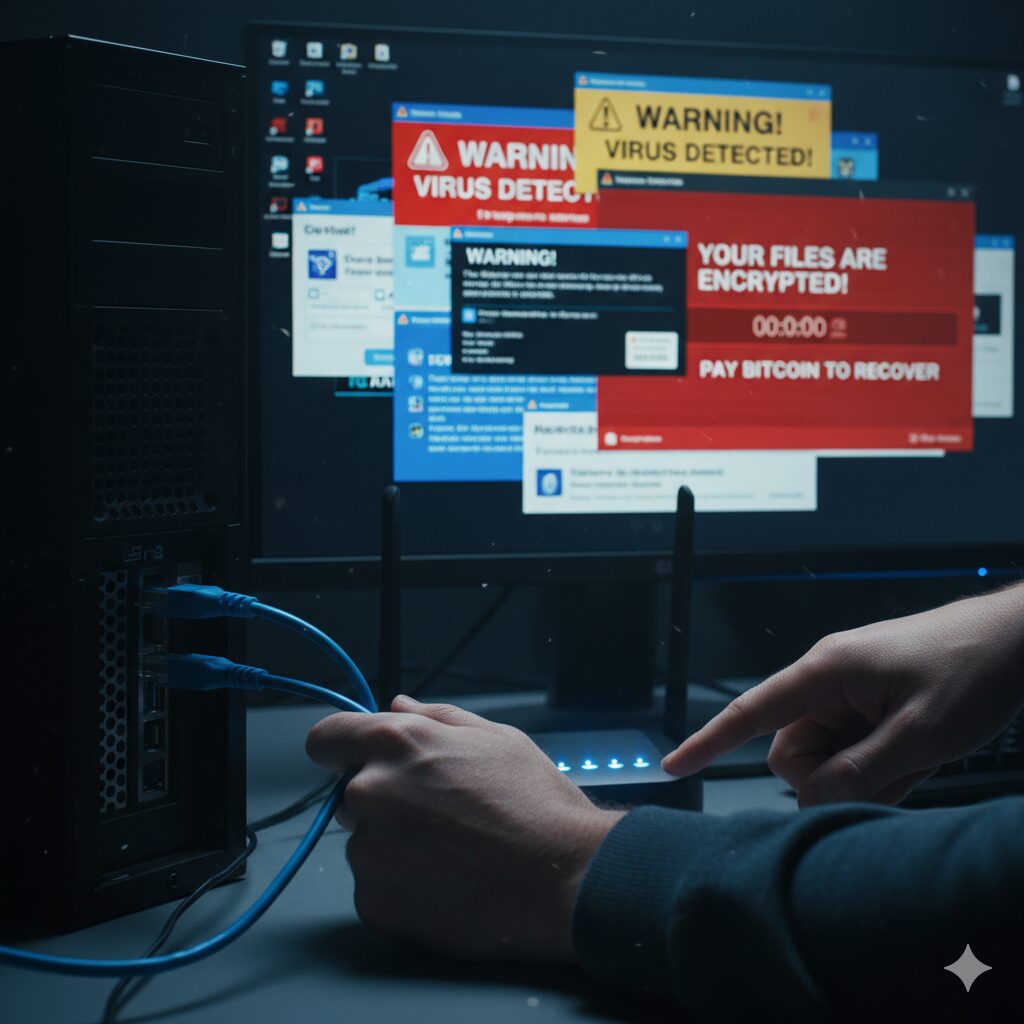
Before you begin the cleaning process, you must isolate the infected machine to prevent the malware from spreading. This is the crucial starting point in any successful approach to How to Remove Malware.
Disconnect from the Internet: Immediately unplug your ethernet cable or turn off Wi-Fi. This stops the malware from communicating with its command-and-control server and prevents it from infecting other devices on your network.
Enter Safe Mode: Booting into Safe Mode loads only the minimal required operating system files, preventing most malware programs from running at startup.
Windows 10/11: Hold the Shift key while clicking Restart $rightarrow$ Troubleshoot $rightarrow$ Advanced options $rightarrow$ Startup Settings $rightarrow$ Restart $rightarrow$ Select Safe Mode with Networking (or just Safe Mode).
Note: Safe Mode is essential because it gives you the upper hand, allowing you to run cleaning tools without interference from the malicious software.
Eradication: The Core Process of How to Remove Malware
Once in Safe Mode, you can begin the active steps of How to Remove Malware.
Delete Temporary Files
Malware often hides its files within temporary folders. Clearing these files can remove parts of the infection.
Open the Run dialog ($text{Windows Key} + text{R}$).
Type %temp% and hit Enter.
Select all files and delete them. Skip any files that cannot be deleted.
Review your installed applications for anything you don’t recognize or didn’t intentionally install.
Go to Settings $rightarrow$ Apps $rightarrow$ Apps & features.
Sort by installation date and look for recent, suspicious programs. These are frequently bundled with legitimate software.
Select the program and click Uninstall.
Run a Full System Scan
The most effective step in How to Remove Malware is using reputable anti-malware software. Even if you have an active antivirus, running a second, trusted scanner can catch threats missed by the first.
Download Anti-Malware Tools: Since you are in Safe Mode, you will need to reconnect to the network briefly to download your tool of choice (e.g., Malwarebytes, Kaspersky Virus Removal Tool).
Run a Full Scan: Perform a comprehensive scan of your entire PC. This can take several hours.
Quarantine and Delete: Once the scan identifies threats, instruct the software to Quarantine and then Delete the detected malware files.
Post-Eradication Clean-up and Prevention
After successfully learning How to Remove Malware, you need to clean up the residual damage and secure your system for the future.
Clean Web Browsers: Malware often installs unwanted toolbars, extensions, or changes your homepage.
Manually review and remove any suspicious extensions in Chrome, Firefox, or Edge.
Reset your browser settings to their default state.
Update Software and OS: Ensure your operating system and all applications are fully patched and up-to-date. This plugs the security holes that allowed the infection in the first place.
Change All Critical Passwords: Assume the malware captured your login details. Once your PC is clean and secure, immediately change the passwordsfor all critical accounts (banking, email, social media) using a clean device if necessary, or your newly sanitized PC.
By following this complete guide, you now know the step-by-step process of How to Remove Malware From Your PC and restore your system’s integrity.
It’s a feeling every PC user dreads: the sudden slowdown, the endless pop-up ads, or the terrifying ransomware message. Malware, which includes viruses, spyware, trojans, and ransomware, isn’t just an annoyance—it’s a direct threat to your personal data, financial information, and online privacy.
If you suspect your computer is infected, don’t panic. With a clear, methodical approach, you can reclaim your machine. This guide will walk you through the essential steps to find and remove malware from your Windows PC.
First, Are You Infected? Common Signs of Malware
Before you begin the removal process, confirm you’re dealing with an infection. Look for these classic warning signs:
Sudden Performance Drop: Your PC is suddenly sluggish, applications take forever to load, or it freezes frequently.
Constant Pop-Up Ads: You’re seeing ads even when your browser is closed.
Browser Hijacking: Your homepage or default search engine changes without your permission, or you’re redirected to strange websites.
New, Unwanted Toolbars: Your browser has new toolbars or extensions you didn’t install.
Frequent Crashes: The dreaded “Blue Screen of Death” (BSOD) or other system-wide crashes happen regularly.
Mysterious Network Activity: Your internet connection is unusually slow, and you notice strange network activity (your modem’s lights are blinking frantically).
Antivirus Disabled: Your antivirus or firewall has been turned off, and you can’t seem to turn it back on.
How to Remove Malware
If these symptoms sound familiar, it’s time to take action.
The Step-by-Step Malware Removal Guide
Follow these steps in order for the best results. Do not skip any.
Disconnect from the Internet
This is your first and most critical move. As soon as you suspect malware, disconnect your PC from the internet.
For Wi-Fi: Turn off your computer’s Wi-Fi adapter.
For Wired: Unplug the Ethernet cable from your PC.
This immediately stops the malware from communicating with its “command and control” server, preventing it from spreading to other devices on your network or sending your data out.
Boot into Safe Mode (with Networking)
Malware is often designed to load as soon as Windows starts, making it difficult to remove. Safe Mode starts Windows with only the bare-bones essential files and drivers. This often prevents the malware from running, making it much easier to delete.
Restart your computer.
As it boots, repeatedly press the F8 key (on older PCs) or hold Shift while clicking Restart from the power menu (on Windows 10/11).
This will bring up the “Advanced Boot Options” or “Choose an option” screen.
After your PC restarts, you’ll see a list of options. Press 5 or F5 to select “Enable Safe Mode with Networking.”
Note: We select “with Networking” only so we can download the necessary scanning tools in the next step. If you’ve already downloaded them on a clean PC and saved them to a USB drive, you can choose regular “Safe Mode.”
Clean Your Temporary Files
Before running a scan, clear out your temporary files. This can speed up the scan and even remove some malware components.
In Safe Mode, type “Disk Cleanup” into the Windows search bar and open the utility.
Select your main drive (usually C:).
Check the box for “Temporary files” and “Temporary Internet Files.”
Click OK and then “Delete Files” to confirm.
Run an On-Demand Malware Scanner
Your existing antivirus might have missed the infection. Your next step is to use a powerful, on-demand scanner known for its excellent detection rates. These are designed to find and remove threats that other programs miss.
While in Safe Mode with Networking, open your browser and download a reputable, free on-demand scanner.
Excellent choices include Malwarebytes, Bitdefender Free Edition, or Emsisoft Emergency Kit.
Install the program and run any available updates to get the latest malware definitions.
Run a Full or System Scan (do not just run a “Quick Scan”). This will take time, possibly over an hour, but it’s essential.
Review Scan Results and Quarantine
Once the scan is complete, the program will show you a list of all the malicious files and registry keys it found.
Don’t just delete everything. Most scanners will recommend an action, typically “Quarantine” or “Remove.”
Quarantine is the safest option. It moves the malicious files to a secure vault where they can no longer do any harm, but allows you to restore them if a “false positive” (a good file mistakenly flagged as bad) occurred.
Trust your scanner. Follow its recommendations and let it clean your system.
Run a Full Scan with Your Primary Antivirus
Even after the on-demand scanner has done its job, it’s wise to get a second opinion from your main security suite (e.g., Windows Defender, Norton, McAfee, etc.).
Restart your computer normally (exit Safe Mode).
Ensure your primary antivirus is fully updated.
Run another Full System Scan.
This helps confirm that the initial threat is gone and catches any lingering components the first scanner might have missed.
Reset Your Passwords
This step is non-negotiable. If you had malware, especially spyware or a trojan, you must assume your passwords have been compromised.
After you are confident your PC is clean, use a different, clean device (like your smartphone) to change the passwords for your:
In rare cases, some persistent malware (like a rootkit) may survive these steps. You have two final options.
Use System Restore: You can “roll back” your system to a point in time before the infection occurred. Type “Create a restore point” into the Windows search, click “System Restore,” and choose a restore point dated before you noticed the problems. Warning: This will uninstall any programs and drivers you installed after that date.
The “Nuclear Option” – Reset or Reinstall Windows: This is the 100% guaranteed way to remove any infection. Windows 10 and 11 have a “Reset this PC” feature that allows you to reinstall the operating system, either keeping your files or wiping everything. Wiping everything is the most secure bet. Always back up your essential data (photos, documents) to an external drive before doing this.
How to Prevent Malware in the Future
An ounce of prevention is worth a pound of cure. Keep your PC secure with these habits:
Keep Everything Updated: This is your #1 defense. Enable automatic updates for Windows, your browser, and all your applications.
Use a Top-Tier Antivirus: Use a high-quality, real-time antivirus program and keep it enabled. Windows Defender, built into Windows, is very good, but paid options often offer more features.
Be Smart About Clicks: Don’t click on suspicious links in emails, social media, or text messages. If an email from “your bank” looks weird, it’s a phishing scam.
Verify Downloads: Only download software from the official vendor’s website, not from third-party “downloader” sites.
Use a Firewall: Ensure the Windows Firewall (or your antivirus’s firewall) is always turned on.
Back Up Your Data: Regularly back up your important files to an external hard drive or a cloud service. If you get hit with ransomware, you can just wipe your PC and restore your files, no ransom required.
The data is clear: Ransomware profits drop significantly as organizations prioritize resilience over capitulation. For years, the ransomware ecosystem…