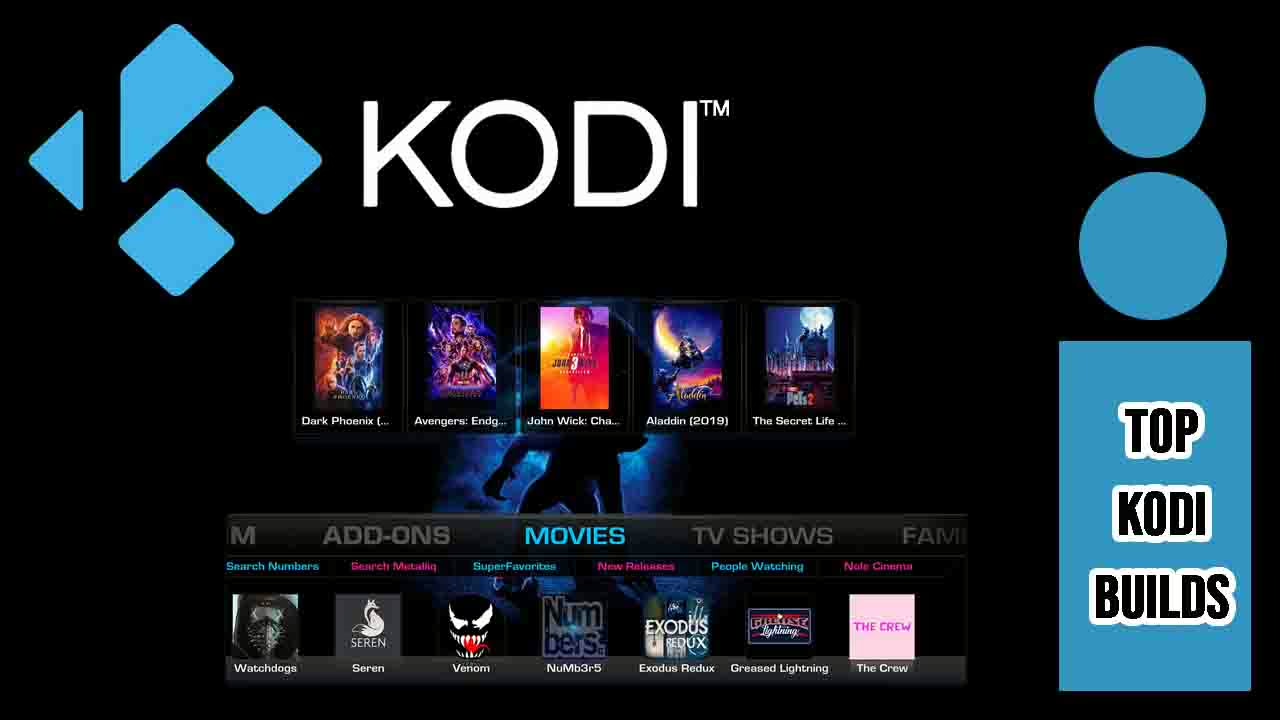
Supercharge Your Streaming – 15 Must-Try Kodi Builds for 2026
Get Ready to Transform Your Kodi Streaming Experience
Kodi – Prepare to take your Kodi streaming adventure to the next level! We’re thrilled to present our handpicked selection of the 15 best Kodi builds for 2026. No matter if you’re using a FireStick, Android device, Windows, or Mac, these builds are your ticket to a universe of endless entertainment possibilities.
What is Kodi?
Kodi is an incredible, open-source media player that supports virtually all types of digital media files and formats. Unlike standard media players like VLC, Kodi stands out in every way. It can handle all kinds of streams, including movies, TV shows, music, live TV programs, podcasts, and so much more.
To run these media files and links, Kodi requires third-party addons. But don’t worry, most addons are free and safe to install and use on your device. When it comes to compatibility, Kodi is a superstar. It can be installed on various devices and operating systems, including Android, Mac, Windows, and more.
Kodi is not just your average media player. It offers multiple options, including storing and organizing media files, browsing the internet, and even gaming. All these come as additional functions. You can customize the look and feel of Kodi to your heart’s content. It offers numerous ways to personalize the interface and make use of various themes and colors it provides.
What is a Kodi Build?
Kodi builds are preconfigured settings that transform the Kodi interface. They can change the look, color, and some functionalities of addons and themes. Since Kodi is an open-source software, builds are usually developed by third-party programmers. This provides numerous choices to pick from, with tons of free builds available for use. However, not all builds are stable or well-coded; some are subpar or poorly coded, while others are outright malicious.
To save you the hassle of finding the best choice for your device and your needs, we have tested dozens of Kodi builds to create the best list of Kodi builds. The result of our time-consuming and thorough search is provided below.
Top Kodi Builds in 2026
Xenon
The Xenon Build is one of the most popular Kodi builds out there. Its user interface is straightforward and designed for ease of use.
The Xenon Kodi build offers numerous addons for movies, TV shows, live TV, sports, and additional content. It is compatible with any device that can run Kodi, such as FireStick, Android TV, PC, Mac, smartphones, and more.
Plutonium
Plutonium stands out among the extensive array of builds offered by EzzerMac’s Wizard. Within this wizard lies a vast assortment of both in-house creations and third-party builds curated from various developers. Undoubtedly, Plutonium emerges as a standout Kodi build within this rich collection.
For those who love vibrant and visually striking themes, Plutonium is sure to captivate. But its appeal goes beyond just looks. With a robust selection of popular Kodi addons for Live TV, Sports, Movies, Shows, and diverse video content, Plutonium ensures a comprehensive streaming experience.
Despite its lightweight nature, with a download size of approximately 150 MB, Plutonium delivers top-notch performance across all platforms, including the FireStick—a testament to its efficiency even on lower-spec media devices. While it may lack an abundance of features due to its compact size, Plutonium covers all the essentials, guaranteeing an ample supply of streaming content.
OneFlix
OneFlix, a free Kodi build available from THE7o9REPO, boasts a user-friendly layout and a plethora of streaming options. With OneFlix, users can enjoy a diverse selection of new and popular movies and TV series. Additionally, premium addons like THE CREW, Homelander, and Umbrella provide access to high-quality streaming links.
The standout feature of OneFlix is its compatibility with Real Debrid, allowing users to link their accounts for a superior streaming experience in 1080p and 4K resolution. OneFlix is compatible with all Kodi-supported devices, including Fire TVs, FireSticks, Android smartphones, and more.
Green Monster
Green Monster, available from THE CREW REPO, is a captivating entertainment-focused Kodi build that introduces a fresh skin to enhance Kodi’s visual appeal. Offering a wide array of content including movies, TV shows, sports, live TV, music, and more, Green Monster provides users with a comprehensive entertainment experience. The build comes equipped with numerous video addons such as THE CREW, Rising Tides, Shazam, Homelander, and others, ensuring access to a diverse range of content.
Green Monster’s home menu is both simple and distinctive, featuring sections for Movies, TV Shows, Variety, Sports, Live TV, Kids, Music, Stars, and System. With its reliable video addons, impressive theme, and extensive content variety, Green Monster stands out as one of the top Kodi builds available.
Smokin
Smokin is one of the Kodi builds that offers a unique and engaging user experience. It is known for its sleek design and a wide range of addons that cater to various entertainment needs. For more information on Kodi and its installation, you can refer to the official Kodi website.
Fixing 5 Common Kodi Problems on Firestick: A Comprehensive Guide
So, you’ve managed to get Kodi installed on your Firestick—or at least, you thought you did. But now, it’s buffering endlessly, crashing repeatedly, refusing to open, or some add-ons just won’t cooperate. Does this sound familiar? You’re not alone. Stick with us, and we’ll help you resolve these Kodi issues on your Firestick.
Kodi is fantastic when it works smoothly. But when it doesn’t, it can be incredibly frustrating. Instead of giving up, remember that every problem has a solution. Let’s dive into some common Kodi issues on Firestick and how to fix them effectively.
Issue 1: Kodi Won’t Install on Firestick
If Kodi fails to install, it’s usually due to one of the following reasons:
- Insufficient storage space
- Corrupted APK file
- Outdated Firestick software
How to Fix It:
- Free up storage:
Navigate to Settings → Applications → Manage Installed Applications. Uninstall unused apps and clear the app cache. Restart your Firestick and attempt to install Kodi again. - Download Kodi from the official source:
Always use the official Kodi website to get the latest version. If one version doesn’t install, try an older stable release. - Check for Firestick software updates:
Go to Settings → My Fire TV → About → Check for Updates. If an update is available, install it and restart your Firestick.
Issue 2: Kodi Keeps Crashing or Freezing
If Kodi keeps shutting down or freezing when you try to open it, the issue is usually due to corrupt data or conflicting settings.
How to Fix It:
- Clear Kodi’s cache:
Go to Settings → Applications → Manage Installed Applications → Kodi. Click Clear Cache and restart Kodi. - Force stop and restart Kodi:
Go to Settings → Applications → Manage Installed Applications → Kodi. Click Force Stop, then relaunch the app. - Reset Kodi to factory settings:
In Kodi, go to Settings → System → Reset Kodi. Warning: This deletes all settings and restores Kodi to default.
Issue 3: Kodi Streams Keep Buffering
Buffering is a common annoyance when using Kodi. It happens because of:
- Slow internet speed
- Overloaded Firestick RAM
- Too many background processes
How to Fix It:
- Check your internet speed:
Open the Silk Browser on Firestick and go to fast.com. If speeds are below 10 Mbps, restart your router or consider upgrading your plan. - Reduce Firestick background apps:
Go to Settings → Applications → Manage Installed Applications. Close unused apps running in the background. - Use a Kodi buffer fix add-on:
Install Ares Wizard and enable Advanced Settings Wizard. Adjust the cache size to prevent constant buffering.
Issue 4: Downloader App Can’t Install Kodi
If the Downloader app gives an error when trying to fetch Kodi, it could be due to:
- Incorrect URL
- Firestick blocking unknown sources
- Network issues
How to Fix It:
- Double-check the URL:
Ensure you are using the correct Kodi link: https://kodi.tv/download. Select Android → ARMV7A (32-bit) for Firestick. - Enable third-party apps on Firestick:
Go to Settings → My Fire TV → Developer Options. Enable Apps from Unknown Sources and ADB Debugging. - Try a different method:
If Downloader doesn’t work, use ES File Explorer instead.
Issue 5: Add-ons Not Working or Won’t Install
Some Kodi add-ons may not work properly or refuse to install. This is usually because:
- The add-on source is down
- Unknown Sources aren’t enabled
- The repository is outdated
How to Fix It:
Final Troubleshooting Tip: Restart Firestick
If Kodi is acting up and you can’t figure out why, a simple Firestick reboot often solves everything:
- Hold down the Firestick remote Home button and select Restart.
- Wait for it to reboot and try again.
Now your Kodi should be working smoothly!
Unlock Endless Entertainment: Install Kodi on Firestick in Minutes
Are you ready to transform your Amazon Firestick into a powerhouse of entertainment? Installing Kodi is your ticket to a world of movies, TV shows, live sports, and more—all accessible from one convenient interface. Although Amazon doesn’t officially support Kodi, don’t worry! This guide will walk you through the process of installing Kodi on your Firestick quickly and safely.
Preparing Your Firestick for Kodi
Before diving into the installation, there’s a crucial step to prepare your Firestick. By default, Amazon blocks third-party apps like Kodi. Here’s how to bypass that restriction:
Enable Apps from Unknown Sources
Free Up Storage (Optional but Recommended)
- Go to Settings → Applications → Manage Installed Applications.
- Uninstall unused apps and clear the cache to make space.
Enabling Apps from Unknown Sources is essential for installing Kodi on Firestick. This setting removes Amazon’s restrictions, allowing you to install third-party apps.
Install Kodi on Firestick: Step-by-Step Guide
Now that your Firestick is ready, it’s time to install Kodi. There are two reliable methods to do this. Follow these steps carefully, and you’ll have Kodi running in no time.
Method 1: Using the Downloader App (Fastest & Easiest)
This is the simplest way to get Kodi on your Firestick. The Downloader app allows you to install third-party apps without needing a computer.
Step 1: Install Downloader
- From your Firestick home screen, go to Find → Search.
- Type Downloader and select it.
- Click Download or Get and wait for it to install.
Step 2: Allow Downloader to Install Apps
- Open the Downloader app.
- The first time you launch it, it will ask for permissions—click Allow.
- If prompted, go to Settings and enable Install Unknown Apps for Downloader.
Step 3: Download & Install Kodi
- In Downloader, click the URL bar and type: https://www.kodi.tv/download
- Select Android → Choose ARMV7A (32BIT) (Best for Firestick).
- Wait for the file to download, then click Install.
- Once installed, select Open to launch Kodi.
Done! You now have Kodi installed on your Firestick.
Method 2: Using ES File Explorer (Alternative Method)
If Downloader isn’t working, ES File Explorer is a solid backup option.
Step 1: Install ES File Explorer
- On your Firestick, go to Find → Search.
- Type ES File Explorer and install it.
Step 2: Download Kodi APK
- Open ES File Explorer → Click Tools on the left menu.
- Select Download Manager → Click New.
- In the URL field, type: https://www.kodi.tv/download
- Choose Android → ARMV7A (32BIT) and download the file.
Step 3: Install Kodi
- Once the download finishes, click Open File → Install.
- After installation, click Done or Open.
That’s it! You’ve installed Kodi using ES File Explorer.
Setting Up Kodi for the First Time
Now that Kodi is installed on your Firestick, you’re almost ready to start streaming. But first, let’s configure Kodi for the best experience.
Step 1: Open Kodi & Allow Permissions
The first time you launch Kodi, it will request access to your device’s storage. This is necessary for Kodi to read and play media files.
- Click Allow when prompted.
- If you accidentally denied it, go to Firestick Settings → Applications → Manage Installed Applications.
- Find Kodi, select it, and click Permissions.
- Enable Storage Access.
Step 2: Adjust Basic Kodi Settings
Before diving into add-ons, tweak these key settings for better performance:
Interface Settings
- Go to Settings (⚙ Icon) → Interface.
- Change the theme or language if needed.
- Adjust skin settings to customize Kodi’s appearance.
Optimize Video Playback
- Navigate to Settings → Player → Videos.
- Enable Adjust display refresh rate (reduces lag).
- Set Allow hardware acceleration (improves smoothness).
Enable Unknown Sources for Add-ons
- Go to Settings → System → Add-ons.
- Enable Unknown Sources (this allows third-party add-ons).
- A warning will pop up—click Yes to proceed.
Step 3: Install Official Kodi Add-ons (Safe & Legal)
Kodi is empty by default, so you’ll need add-ons to stream content. Let’s start with safe, legal options from Kodi’s official repository:
- Go to Add-ons (from Kodi’s home screen).
- Click Download → Video Add-ons.
- Choose from popular official add-ons like:
- YouTube (for free videos)
- Plex (stream from your own media server)
- Tubi (free movies & TV)
- Click Install and wait for the process to finish.
Your Kodi is now functional with basic streaming capabilities!
Step 4: (Optional) Install Third-Party Add-ons
If you want third-party streaming add-ons, be cautious. Some may provide copyrighted content, which can get you in trouble. If you decide to install third-party add-ons, consider using a VPN to protect your privacy.
You’ve just unlocked one of the most powerful streaming setups by installing Kodi on Firestick. With Kodi, you now have the freedom to watch your favorite content without limits—whether it’s movies, TV shows, live sports, or your own media library.
Recap
3 Easy Ways to Install Kodi on Your Firestick
This comprehensive guide will take you through the process of installing Kodi on your Firestick. Since Kodi isn’t available on the Amazon Appstore, you’ll need to sideload it. While this process requires a few extra steps, it’s quite manageable. Learn how to install Kodi on Firestick safely and responsibly with this step-by-step tutorial.
Understanding the Risks
Sideloading unofficial apps can expose your device to security risks and potentially compromise your online privacy. However, by following this guide, you can mitigate these risks and install Kodi on your Firestick without jeopardizing your online safety.
Disclaimer
Installing Kodi on your Firestick involves sideloading the app, which requires tweaking some settings to allow third-party installations. This process is legal as it doesn’t tamper with your device’s root files. However, using Kodi to stream copyrighted content without proper authorization violates copyright laws. Here’s how to install Kodi on Firestick responsibly.
Quick Guide: Install Kodi on Firestick in 3 Simple Steps
Detailed Methods to Install Kodi on Firestick
Method 1: Install Kodi on Firestick with Downloader App
- Allow Installation of Apps From Unknown Sources
- Navigate to the Firestick home screen and select the gear icon to access the “Settings” menu.
- Choose the “My Fire TV” tab and locate “Developer options.”
- Toggle to allow installations from Unknown Sources.
- If Developer options are not visible, go to “About” and tap the Fire TV Stick button repeatedly until you see a notification confirming Developer mode activation.
- Return to the Settings menu and select “Preferences.”
- Choose “Privacy Settings” and disable both “Device Usage Data” and “Collect App Usage Data.”
- Install the Downloader App From the Amazon Appstore
- Launch your Firestick and use the search icon on the home page to find the Downloader app.
- Install Downloader by selecting it from the search results and clicking “Download.”
- Download and Install Kodi on Your Firestick
- Open the Downloader app and enter “https://kodi.tv/download” in the URL box. Click “Go” and select “Android.”
- Choose “ARMV7A (32Bit)” to download Kodi. Once the download completes, click “Install” and wait for the “App installed” notification.
- Launch Kodi. The installation process is now complete.
Method 2: Install Kodi on Firestick With ES File Explorer
- Download ES File Explorer From the Amazon Appstore
- Navigate to your Firestick and search for “ES File Explorer” using the search icon on the home page.
- Install the app by selecting ES File Explorer from the list and clicking “Download.”
- Download and Install Kodi on Your Firestick
- Open ES File Explorer and locate the downloader icon. Click on it, then select +New located at the bottom right of the screen.
- Enter the path to your media by inputting “https://kodi.tv/download” in the Path section and assigning a name in the Name box. Proceed by selecting “Download Now.”
- After confirming the URL, click “Download now” to initiate the process.
- Once the download is complete, click “Open file,” followed by “Install.” Confirm the installation when prompted.
Method 3: Install Kodi on Firestick With AppStarter
- Download and Install AppStarter
- Launch Downloader and enter the URL for AppStarter. Click “Go” to proceed.
- Install AppStarter by clicking “Install” when prompted.
- Wait for the installation process to complete.
- Install Kodi Using AppStarter
- Open AppStarter and navigate to Updates. You’ll find Kodi listed in the menu. Click “Install” next to Kodi to initiate the installation process.
- Once ready, launch Kodi and enjoy locally licensed content on your Firestick.

By following these steps, you can safely install Kodi on your Firestick and enjoy its features without compromising your online security and privacy. Remember to use Kodi responsibly and respect copyright laws while enjoying your favorite content.
Kodi on Firestick: Is It Legal & Safe? Your Ultimate Guide
You’ve probably heard mixed reviews about Kodi—some say it’s illegal and risky, while others swear it’s perfectly safe. So, what’s the real deal? Is Kodi on Firestick legal and safe to use? Let’s dive into the facts and clear up the confusion once and for all.
Is Kodi Legal?
First things first, Kodi itself is 100% legal. It’s an open-source media player, much like VLC or Plex. You can install it on any device, including Firestick, without breaking any laws. However, the legality of Kodi depends on how you use it.
Understanding the Legal Risks
The legal concerns come into play with third-party add-ons. Some of these add-ons provide access to pirated content, such as movies, TV shows, and live sports, which violates copyright laws. Using these add-ons can put you at legal risk.
How to Stay on the Right Side of the Law
- Use Only Official Kodi Add-ons: Kodi has a built-in repository with legal streaming add-ons like YouTube, Pluto TV, Plex, and Tubi. Avoid installing sketchy third-party add-ons that claim to provide free access to paid content.
- Check Your Country’s Laws: Streaming copyrighted content without permission is illegal in many places, including the U.S., U.K., Canada, and Europe. Always check local regulations to stay informed.
Is Kodi Safe?
While Kodi itself is safe, using third-party add-ons can expose you to various risks, including malware, viruses, data tracking, privacy leaks, and ISP throttling. Here’s how to protect yourself:
How to Protect Yourself While Using Kodi
- Always Use a VPN: A VPN (Virtual Private Network) hides your IP address and encrypts your internet traffic, preventing your ISP from tracking you, hackers from stealing your data, and geo-restrictions from blocking content. Recommended VPNs for Kodi include ExpressVPN, NordVPN, and Surfshark.
- Install Add-ons from Trusted Sources Only: Never download Kodi add-ons from random websites. Always use trusted repositories, such as the Official Kodi Repository, The Crew Repository, and Seren Repository.
- Keep Kodi & Add-ons Updated: Older versions of Kodi can have security flaws. To update, go to Kodi.tv and install the latest version.
What Happens If You Use Kodi Without a VPN?
Using Kodi without a VPN can expose you to several risks:
The moral of the story? If you use third-party add-ons, always use a VPN to protect your privacy and security.
Final Verdict: Should You Use Kodi on Firestick?
Yes, Kodi is an amazing media player that gives you full control over your content. However, if you plan to use illegal add-ons, it’s not worth the risk. Stick to official Kodi add-ons and use a VPN for privacy to have a safe, legal, and seamless streaming experience.
Struggling with Kodi Addon Errors? Let’s Fix That!
Kodi is fantastic for its flexibility and vast library of addons. But let’s face it—managing these addons can sometimes feel like herding cats. One of the most common headaches? Errors when trying to uninstall Arctic Fusion, a popular Kodi addon. Whether you’re switching things up or just cleaning house, a stubborn addon can throw a wrench in your Kodi experience.
Don’t worry—we’ve got your back. This guide will walk you through the reasons behind these pesky Kodi addon errors and provide step-by-step solutions to get rid of Arctic Fusion for good. If you’ve ever felt stuck trying to tidy up your Kodi setup, this article is your lifeline to managing addons like a pro.
Why Won’t Kodi Let You Uninstall Arctic Fusion?
Before we jump into fixes, let’s figure out why Kodi is giving you a hard time. Knowing the root cause makes troubleshooting a breeze. Here are the usual suspects:
Addon Dependencies
Arctic Fusion might rely on other addons or scripts to work its magic. These dependencies create a tangled web within Kodi, and if other addons are using the same resources, Kodi might block the uninstall to avoid breaking something else.
Corrupted Addon Files
If Arctic Fusion’s files are corrupted or incomplete—thanks to a failed update or installation glitch—Kodi might struggle to remove it. Corrupted files can also keep the addon from shutting down properly, making uninstallation a nightmare.
Background Processes in Use
Sometimes, Arctic Fusion or one of its dependencies might still be running in the background. Kodi won’t let you remove an active addon, so you’ll get an error message when you try.
Uninstall Script Errors
Some addons come with uninstall scripts to help Kodi remove them cleanly. If this script is missing or broken, Kodi might throw a fit during the process.
Cache Conflicts
Kodi’s cache can store outdated info about addons, creating conflicts. This can make it seem like the addon is still active or installed when it’s not.
Step-by-Step Fixes for Uninstallation Errors
Now that you know the usual culprits, let’s tackle the solutions. Follow these steps carefully to kick Arctic Fusion to the curb and reclaim your Kodi setup.
Method 1: Disable Arctic Fusion Before Uninstalling
Sometimes, Kodi blocks the uninstallation of an active addon. Disabling it first can do the trick.
- Open Kodi and head to Settings (the gear icon).
- Go to Add-ons and select My Add-ons.
- Find and click on Arctic Fusion.
- Choose Disable to turn off the addon.
- Go back to the Arctic Fusion menu and select Uninstall.
Method 2: Use Kodi Maintenance Tools
Maintenance tools like Ares Wizard can help remove problematic addons.
- Install a trusted maintenance tool (e.g., Ares Wizard).
- Open the tool and navigate to the Add-ons management section.
- Locate Arctic Fusion in the list and choose Force Remove.
- Restart Kodi to finalize the process.
Method 3: Manually Remove Addon Files
If Kodi’s interface won’t let you uninstall Arctic Fusion, manually deleting its files can be an effective workaround.
- Locate Kodi’s Data Folder on your device:
- On Windows:
C:Users[Your Username]AppDataRoamingKodiaddons - On macOS:
~/Library/Application Support/Kodi/addons/ - On Android:
/Android/data/org.xbmc.kodi/files/.kodi/addons/
- On Windows:
- Find the folder named
plugin.video.arcticfusion(or a similar name). - Delete the folder completely.
- Restart Kodi and check if the addon is gone.
Method 4: Clear Kodi Cache
Outdated cache data can prevent Kodi from properly uninstalling addons.
- Navigate to Settings > File Manager.
- Select Profile Directory > Database.
- Locate and delete the Addons.db file.
- Restart Kodi—this action rebuilds the database and removes old cache conflicts.
Method 5: Reinstall and Then Uninstall
If Arctic Fusion is corrupted, reinstalling it might fix the issue and make uninstallation possible.
- Go to Settings > Add-ons > Install from Repository.
- Reinstall Arctic Fusion from its original source.
- After installation, follow Method 1 to disable and uninstall it.
Preventing Future Addon Issues
Dealing with addon errors is a pain, but you can avoid most problems with a few simple precautions. If you’re tired of Kodi addons acting up—like Arctic Fusion refusing to uninstall—here are some practical tips to keep things running smoothly.
Stick to Reputable Repositories
Not all addon sources are created equal. Stick to well-known repositories like Kodi’s official repo or trusted third-party options. They’re more likely to offer addons that actually work and won’t mess up your system.
Keep Everything Up to Date
Old software and outdated addons are a recipe for chaos. Kodi updates fix bugs and improve compatibility, so don’t skip them. The same goes for addons—update them regularly to avoid glitches that could block uninstalling or break functionality.
Clean House Regularly
Regularly clear Kodi’s cache and check for addons you don’t use anymore. Leaving old data to pile up can cause conflicts.
Watch Out for Dependency Overload
Some addons, like Arctic Fusion, rely on a web of dependencies. Too many connections can lead to headaches if one piece goes rogue. Before you install anything, check what else it needs and think twice about overly complicated setups.
Test Before You Commit
Downloaded a new addon? Run it through its paces right away. If it’s buggy or causes errors, it’s better to cut ties early rather than waiting for it to cause bigger issues down the line.
Backup, Backup, Backup
A quick backup of your Kodi setup can save hours of frustration. Whether it’s using a maintenance tool or manually copying your data, having a safety net means you’re always a few clicks away from undoing a mess.
Exit Kodi the Right Way
It’s tempting to just close Kodi by killing the app, but resist the urge. Properly shutting it down lets it save data and configurations, reducing the risk of corrupted files or uninstall errors.
FAQs About Kodi Addons Error: Unable to Uninstall Arctic Fusion
Here’s a straightforward FAQ section to address the most common questions about this frustrating Kodi issue.
Why can’t I uninstall Arctic Fusion on Kodi?
This issue typically arises due to one or more of the following reasons:
Ultimate Kodi Builds for Chromebook: Easy Install & Pro Tips
Eager to get Kodi up and running on your Chromebook? You’ve probably seen plenty of guides for Firestick, Android, or Windows, but Chrome OS is a different beast. Some Chromebooks handle Kodi like a champ, while others need a little extra love. And when it comes to fully loaded builds, things can get tricky. But don’t worry, we’ve got your back! We’ve tested tons of builds, installation methods, and tweaks to bring you the ultimate guide to running Kodi on your Chromebook.
Can You Run a Fully Loaded Kodi Build on Chromebook?
Short answer: Yes! But it depends on your Chromebook model and how you install it. Chromebooks vary widely, and their compatibility with Kodi can be hit or miss. Some let you install Kodi directly from the Google Play Store, while others require Linux mode or workarounds like ARC Welder. The method you choose will impact how smoothly your fully loaded Kodi build runs.
But there are a few challenges to keep in mind:
- Low-end Chromebooks might struggle with heavy builds.
- Chrome OS has some limitations that can affect certain features.
- Some Kodi builds are bloated and can slow down your system.
To tackle these challenges, it’s crucial to understand your Chromebook’s capabilities before diving in. Let’s take a quick look at the different types of Chromebooks and how they handle Kodi.
Types of Chromebooks & Kodi Compatibility
Android-Based Chromebooks (Best Compatibility)
These Chromebooks support Kodi from the Google Play Store, just like Android phones or tablets. You can install most builds, but heavier ones might cause some lag. Lightweight builds like Misfit Mods Lite or Titanium Build work best on these devices.
Chromebooks with Linux (Advanced Users)
For these Chromebooks, you’ll need to install Kodi manually using Linux commands. This method offers more flexibility but requires a bit more setup. Fully loaded builds can work, but performance will depend on your hardware.
Older or Budget Chromebooks (Limited Options)
If your Chromebook doesn’t support Google Play, you’ll have to use ARC Welder or third-party APK loaders. These devices often struggle with fully loaded builds, so it’s better to install add-ons manually instead.
Are Fully Loaded Kodi Builds Legal?
It’s important to talk about the legality of Kodi builds. Not all Kodi builds are safe or legal, as many “fully loaded” builds come with third-party streaming add-ons that often include pirated content. While installing Kodi itself is totally legal, using unauthorized add-ons could put you at risk.
If you choose to use a fully loaded build, make sure it only contains legal add-ons. To protect your privacy while streaming, consider using a VPN like Private Internet Access.
Best Kodi Builds for Chromebook
Now that you’ve got Kodi installed on your Chromebook, let’s explore the best builds that work well on these devices. Remember, not all builds are created equal, and some might not perform optimally on Chromebooks. Here are our top picks:
Misfit Mods Lite
Misfit Mods Lite is perfect for Chromebooks that aren’t powerhouses. This lightweight build won’t slow down your device. It’s optimized for speed, comes with pre-installed categories, and has zero unnecessary bloat, making it ideal for older or budget-friendly Chromebooks.
Xenon Build
Xenon Build is great for those who want a full Kodi experience without sacrificing performance. It offers a balance between features and speed, with custom widgets, multiple skins, and an all-in-one entertainment experience. Xenon Build works well on most setups and is compatible with Google Play or Linux-installed Kodi.
No Limits Magic Build
If you’re looking for a visually stunning Kodi build, No Limits Magic is the one for you. This build offers a sleek interface, built-in optimization tools, and a massive library of add-ons. It’s perfect for high-performance Chromebooks or anyone who wants Kodi to look and feel premium.
Titanium Build
Titanium Build is the “no-nonsense” choice, offering a balance between functionality and performance. It’s pre-configured for stability, has a simple yet effective UI, and runs well on almost any Chromebook. This build is perfect for those who want an all-rounder that just works.
Which Build Should You Choose?
Ultimately, the best build for you depends on your specific needs and Chromebook model. Here’s a quick rundown:
- For a fast, lag-free experience: Misfit Mods Lite
- For a feature-rich, full setup: Xenon Build
- For a premium, slick-looking Kodi: No Limits Magic
- For a simple, balanced experience: Titanium Build
Every Chromebook handles Kodi differently, so don’t be afraid to test, tweak, and find what works best for your setup.
How to Install Kodi on a Chromebook (Step-by-Step Guide)
Now that you’ve chosen your Kodi build, it’s time to install it on your Chromebook. As mentioned earlier, Chromebooks don’t all work the same way, so the installation method you use will depend on your specific device. Here are three installation methods to choose from:
Method 1: Installing Kodi via Google Play Store (Easiest)
This method is best for any Chromebook that supports Android apps from the Google Play Store. Follow these steps:
- Open the Google Play Store on your Chromebook.
- Search for “Kodi” and select the official Kodi app.
- Click “Install” and wait for the installation to complete.
- Once installed, open Kodi and follow the on-screen instructions to set it up.