3 Easy Ways to Install Kodi on Your Firestick
This comprehensive guide will take you through the process of installing Kodi on your Firestick. Since Kodi isn’t available on the Amazon Appstore, you’ll need to sideload it. While this process requires a few extra steps, it’s quite manageable. Learn how to install Kodi on Firestick safely and responsibly with this step-by-step tutorial.
Understanding the Risks
Sideloading unofficial apps can expose your device to security risks and potentially compromise your online privacy. However, by following this guide, you can mitigate these risks and install Kodi on your Firestick without jeopardizing your online safety.
Disclaimer
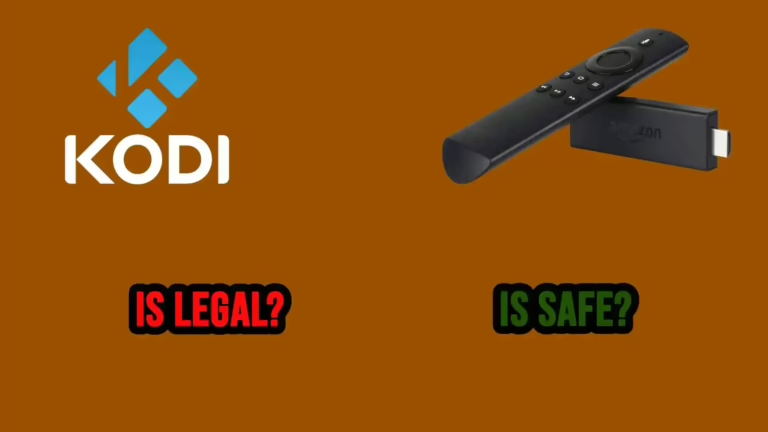
Installing Kodi on your Firestick involves sideloading the app, which requires tweaking some settings to allow third-party installations. This process is legal as it doesn’t tamper with your device’s root files. However, using Kodi to stream copyrighted content without proper authorization violates copyright laws. Here’s how to install Kodi on Firestick responsibly.
Quick Guide: Install Kodi on Firestick in 3 Simple Steps
Detailed Methods to Install Kodi on Firestick
Method 1: Install Kodi on Firestick with Downloader App
- Allow Installation of Apps From Unknown Sources
- Navigate to the Firestick home screen and select the gear icon to access the “Settings” menu.
- Choose the “My Fire TV” tab and locate “Developer options.”
- Toggle to allow installations from Unknown Sources.
- If Developer options are not visible, go to “About” and tap the Fire TV Stick button repeatedly until you see a notification confirming Developer mode activation.
- Return to the Settings menu and select “Preferences.”
- Choose “Privacy Settings” and disable both “Device Usage Data” and “Collect App Usage Data.”
- Install the Downloader App From the Amazon Appstore
- Launch your Firestick and use the search icon on the home page to find the Downloader app.
- Install Downloader by selecting it from the search results and clicking “Download.”
- Download and Install Kodi on Your Firestick
- Open the Downloader app and enter “https://kodi.tv/download” in the URL box. Click “Go” and select “Android.”
- Choose “ARMV7A (32Bit)” to download Kodi. Once the download completes, click “Install” and wait for the “App installed” notification.
- Launch Kodi. The installation process is now complete.
Method 2: Install Kodi on Firestick With ES File Explorer
- Download ES File Explorer From the Amazon Appstore
- Navigate to your Firestick and search for “ES File Explorer” using the search icon on the home page.
- Install the app by selecting ES File Explorer from the list and clicking “Download.”
- Download and Install Kodi on Your Firestick
- Open ES File Explorer and locate the downloader icon. Click on it, then select +New located at the bottom right of the screen.
- Enter the path to your media by inputting “https://kodi.tv/download” in the Path section and assigning a name in the Name box. Proceed by selecting “Download Now.”
- After confirming the URL, click “Download now” to initiate the process.
- Once the download is complete, click “Open file,” followed by “Install.” Confirm the installation when prompted.
Method 3: Install Kodi on Firestick With AppStarter
- Download and Install AppStarter
- Launch Downloader and enter the URL for AppStarter. Click “Go” to proceed.
- Install AppStarter by clicking “Install” when prompted.
- Wait for the installation process to complete.
- Install Kodi Using AppStarter
- Open AppStarter and navigate to Updates. You’ll find Kodi listed in the menu. Click “Install” next to Kodi to initiate the installation process.
- Once ready, launch Kodi and enjoy locally licensed content on your Firestick.

By following these steps, you can safely install Kodi on your Firestick and enjoy its features without compromising your online security and privacy. Remember to use Kodi responsibly and respect copyright laws while enjoying your favorite content.